
How to Make a Custom Feather Flag (Free, No Design Skills)
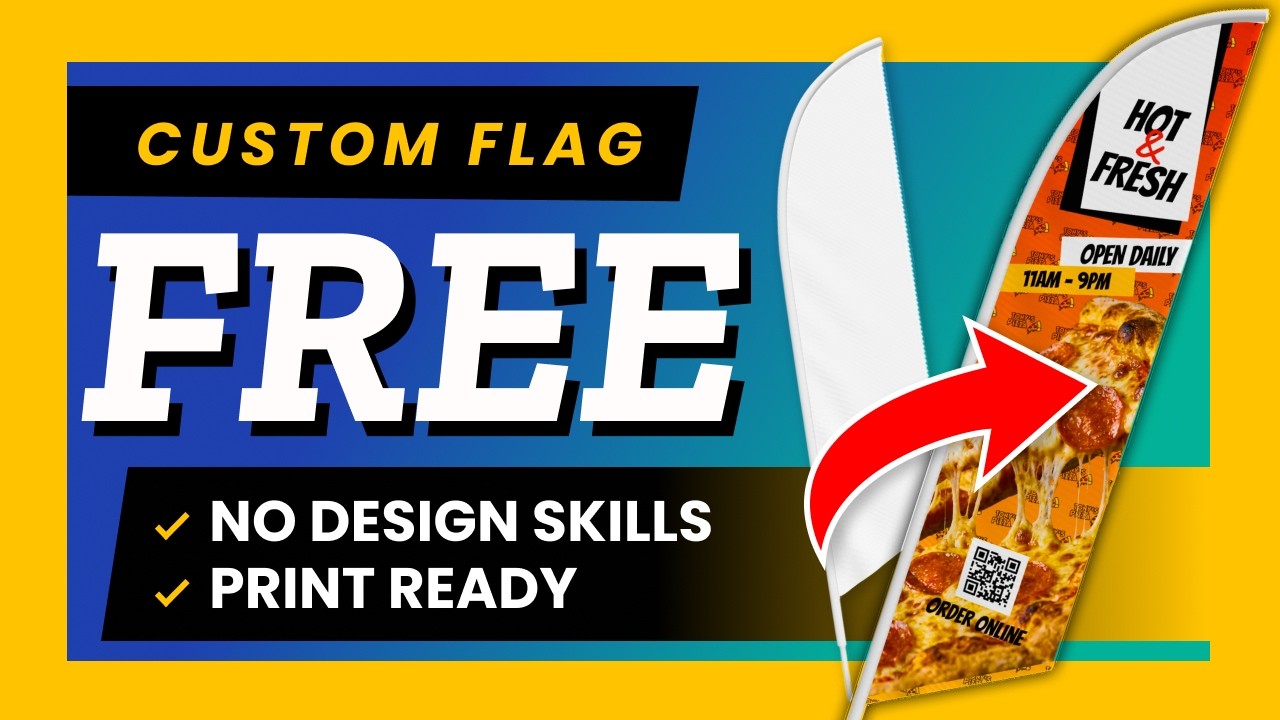
Make your own print-ready feather flag from scratch, for free, right in the Printabotic editor. No Photoshop, no design experience, and no CMYK or bleed knowledge needed. In this full walkthrough we design a flag for a made-up brand, Tony's Pizza, and finish with print-ready files you can send to any printer.
In This Video
- 0:16Pick the flag and size
- 0:33Upload your logo (pattern)
- 1:08Add a photo
- 1:50Remove background with AI
- 2:12Background color
- 2:30Add your headline
- 4:44Open Daily and hours
- 6:24Add a QR code
- 6:48Order Online
- 7:163D preview
- 7:24Review and print-quality check
- 7:42Download the print-ready files
Step by Step
- Pick the feather flag shape and size. The editor is for single-sided flags. For double-sided, upload a print-ready file, or a pro designs it for you, free when we print it
- Upload your logo, and it becomes a pattern across the whole flag
- Add a product photo, then remove its background with one-click AI
- Set a gradient background pulled from your logo colors
- Add headlines, highlight boxes, your hours, and a QR code
- Preview in 3D, run the print-quality check and Auto-Fix, then download the files
What You Get
Video Transcript
Read the full transcript
Let's make a custom flag from scratch, for free, right in the Printabotic editor. No design experience needed. We'll design one for a made-up pizza brand, Tony's Pizza, using the Feather Angled Flag.
Pick your size, and choose single or double-sided. Already have a design? You can upload a print-ready file. To make one yourself, hit Start Designing. The editor opens up, with your tools on the left and your live preview in the middle.
First, upload your logo, and it becomes a pattern across the whole flag. Try the different pattern styles, and adjust the spacing until it feels right.
When it looks good, add a photo of the product, here a nice shot of the pizza. Drag it where you want, scale it, and rotate it to a clean angle, holding Shift so it snaps into place.
Don't want the photo's background? One click on Remove Background and the AI wipes it out, a clean cutout with no editing skills needed.
Now the background. Switch to a gradient and pull colors straight from your logo, going bold red, angled diagonally.
Time for text: add a headline, Hot and Fresh, in a bold font, size it up, and give it a slight tilt. Drop a shape behind it for contrast, add an ampersand, and recolor just that one letter red. Add a bold banner across the top and angle it to frame the design, then use the layers panel to stack everything in the right order.
Add another line of text, Open Daily, in a fun chunky font with a highlight box, and add your hours below, eleven to nine. Group and angle them so it looks designed, not just dropped on, and give the hours their own highlight in a warm yellow pulled from your logo.
Now a QR code: click Add QR Code, paste your website, and Generate, then place it where it stands out. Add a quick call to action, Order Online.
Tap 3D to see it on the real flag, then hit Review Design for a print-quality check and Auto-Fix. Add to Cart and check out, and your print files start building. Open My Downloads and grab your zip: print-ready CMYK PDFs with bleed and trim, an editable SVG, and a PNG preview.